Connectivity Setup
4G Configuration
Users using an Ethernet/PoE+ connection do not need to set up this configuration.
Antenna Installation
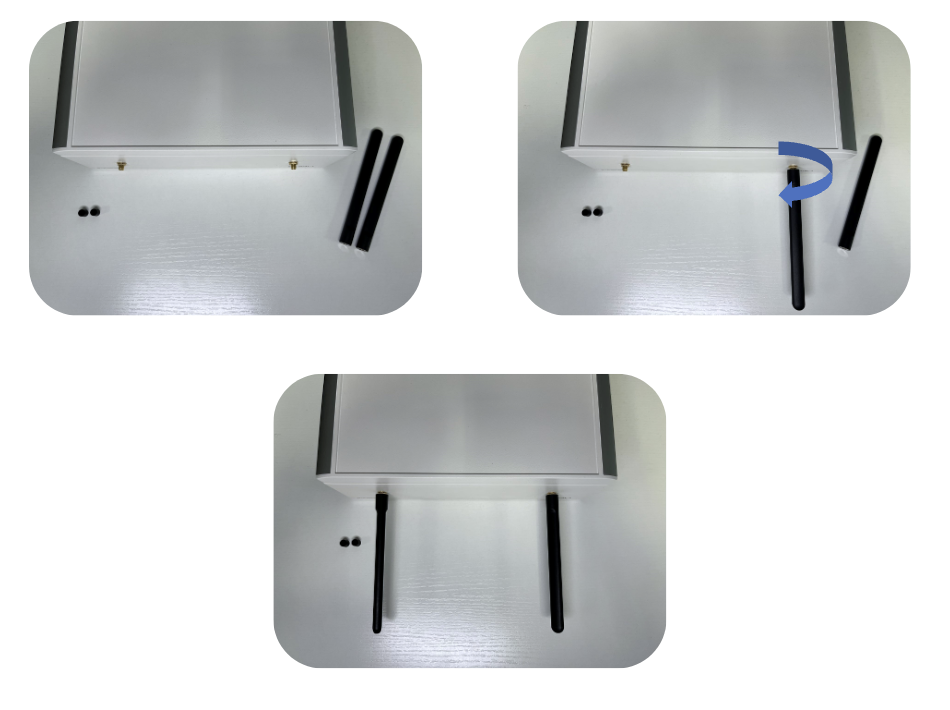
- Connect the two antennas to the corresponding ports located on the top of the casing.
- Screw them in until they are securely tightened.
Ensure that both antennas are securely connected before proceeding.
SIM Card Installation
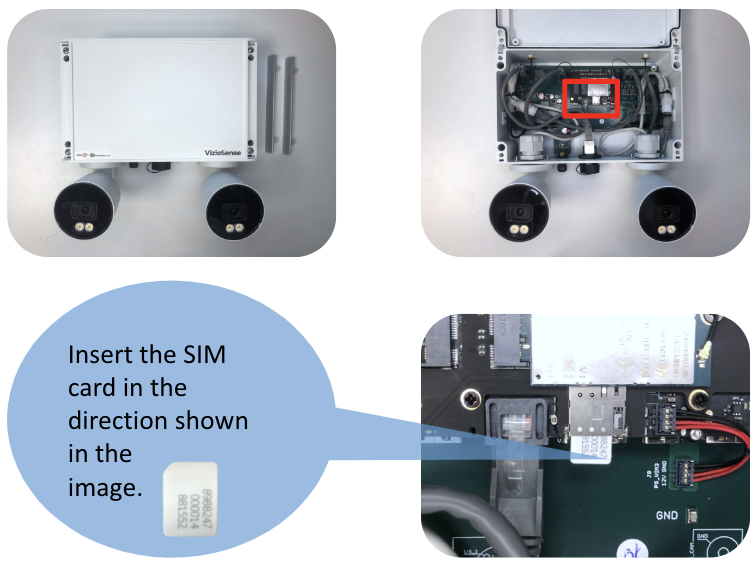
- Remove the two covers and unscrew the top part of the casing.
- Insert the SIM card in the indicated direction; you should hear a click when the SIM card is properly inserted.
- Screw the top part back on securely, ensuring that the screws are tightly fastened.
4G Connection Configuration
- Connect your computer via an Ethernet cable.
- Open a browser and enter the URL
http://192.168.12.1:8080/lteto access the configuration interface.
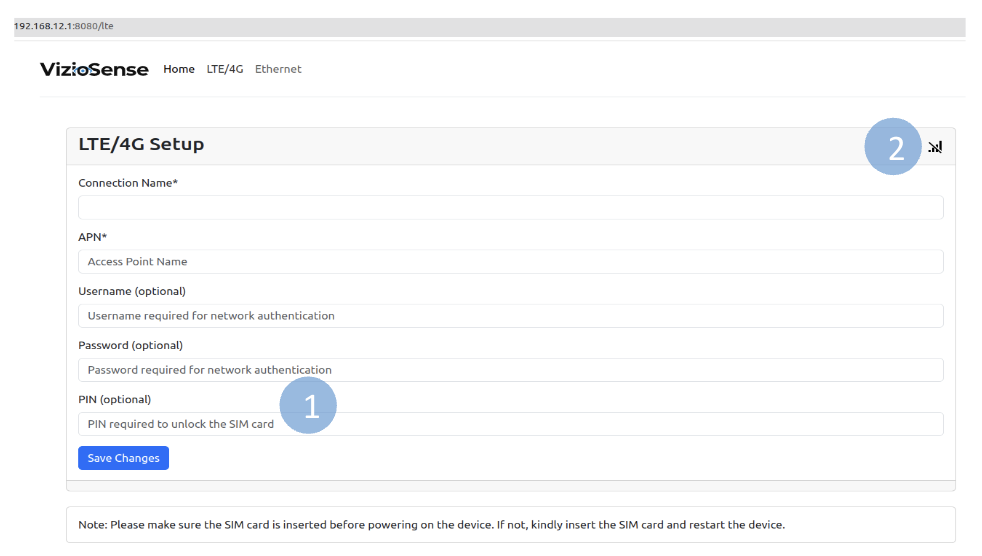
- Fill in the required fields and save the configuration.
- Refresh the page and check the network status of the sensor through the signal icon in the upper right corner. If the connection is successful, the icon will change.
Ensure that the network status icon shows a successful connection.
When there is no network connection, the sensor will restart every 10 minutes to try reconnecting.
Ethernet/PoE+ Configuration
Ethernet/PoE+ Connector Assembly
Follow the instructions outlined in the PoE connector assembly guide.
Verify the Ethernet connection by accessing the device configuration page at http://192.168.12.1:8080.
Switching Between 4G & PoE+/Ethernet
When the kit is in 4G mode and you wish to switch to PoE+/Ethernet mode:
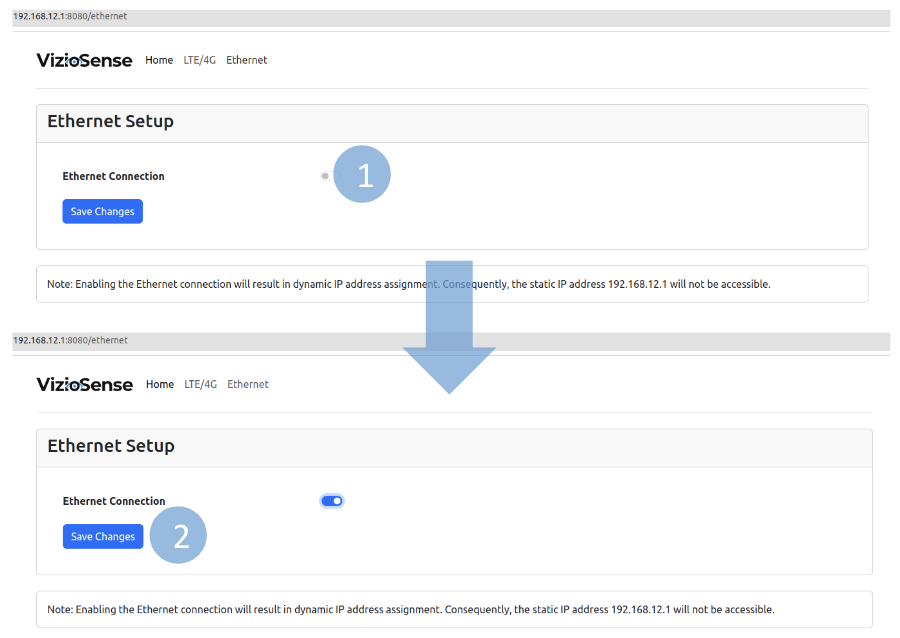
- Enable PoE+/Ethernet networking via the female RJ45 port by clicking the activation button.
- Save the configuration. A confirmation window will appear.
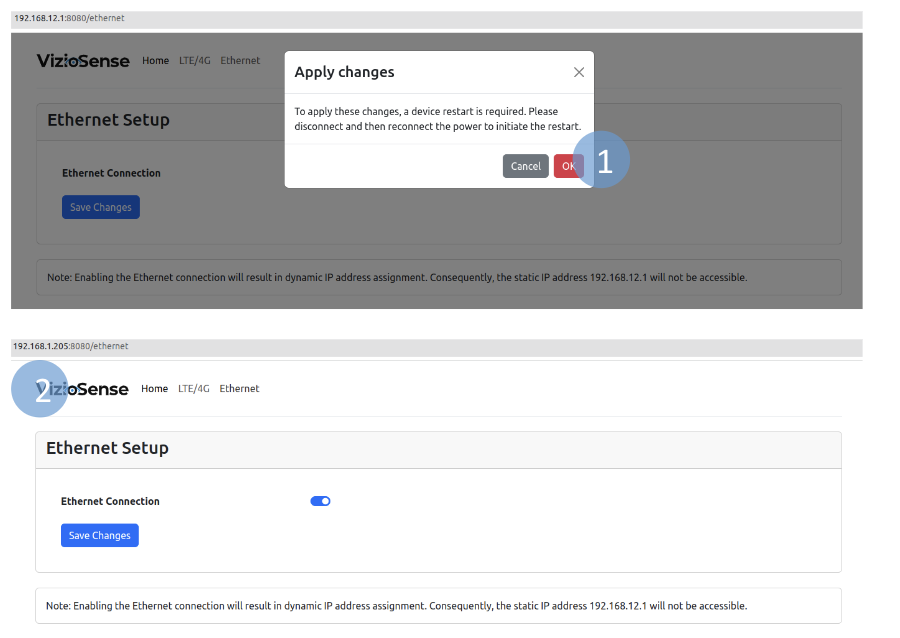
- Unplug and replug the power cable of the kit for the configuration to take effect.
- After reboot, the PoE+/Ethernet networking is now active via the female RJ45 port. The IP address is no longer static like
192.168.12.1but is distributed by your DHCP server.
If you need to disable PoE+/Ethernet networking and switch back to 4G, the activation button should be white. After confirmation, disconnect the sensor from the PoE+/Ethernet network and restart it.
Confirm the network mode switch by checking the connection status on the configuration page.