Battery Monitoring
Overview
The Battery Monitoring feature allows you to connect to Viziosense's batteries over Bluetooth and monitor their real-time status. This feature provides comprehensive battery metrics including voltage, current, power, temperature, individual cell voltages, and more.
You can access the battery monitoring interface at: http://192.168.12.1:8080/battery
Key Features
- BLE Device Discovery: Automatically scan for nearby BLE battery devices
- Manual Pairing: Manually enter battery MAC address for direct connection
- Real-time Monitoring: View live battery metrics updated every 5 seconds
- Cell-level Monitoring: Monitor individual cell voltages and balancing status
- MQTT Integration: Automatically publish battery data to MQTT topics
- Persistent Pairing: Automatically reconnect to paired batteries on startup
Pairing a Battery
There are two methods to pair with a battery device: Automatic Scan Mode (recommended) and Manual Mode.
Method 1: Automatic Scan Mode (Recommended)
This is the easiest way to discover and pair with nearby battery devices.
-
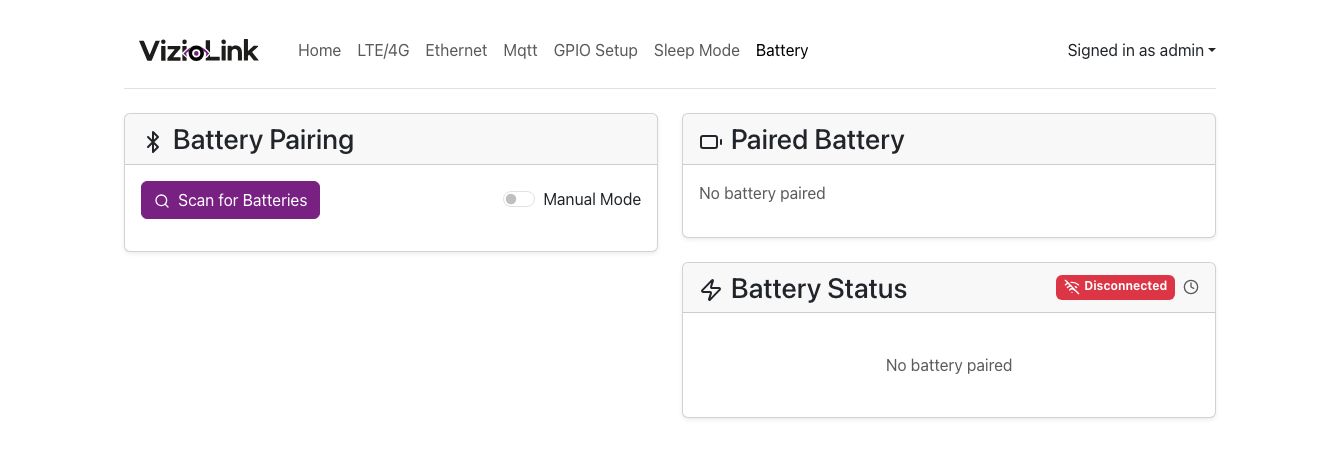
Navigate to the Battery Page
- Access
http://192.168.12.1:8080/batteryin your web browser
- Access
-
Scan for Batteries
- Click the "Scan for Batteries" button
- The system will scan for nearby BLE battery devices (this may take a few seconds)
-
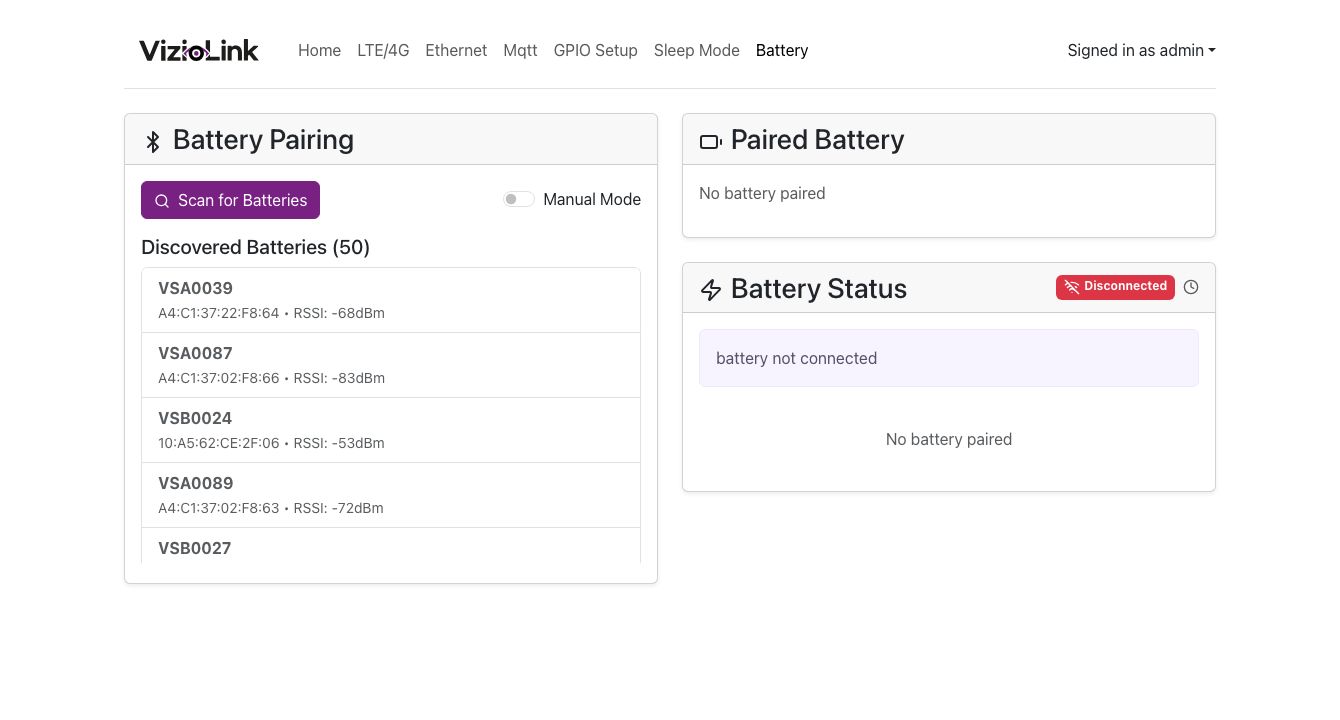
View Discovered Batteries
- After scanning completes, a list of discovered batteries will appear
- Each battery shows:
- Battery name (or "Unnamed Battery" if no name is set)
- MAC address
- RSSI (signal strength in dBm)
- Manufacturer information (if available)
-
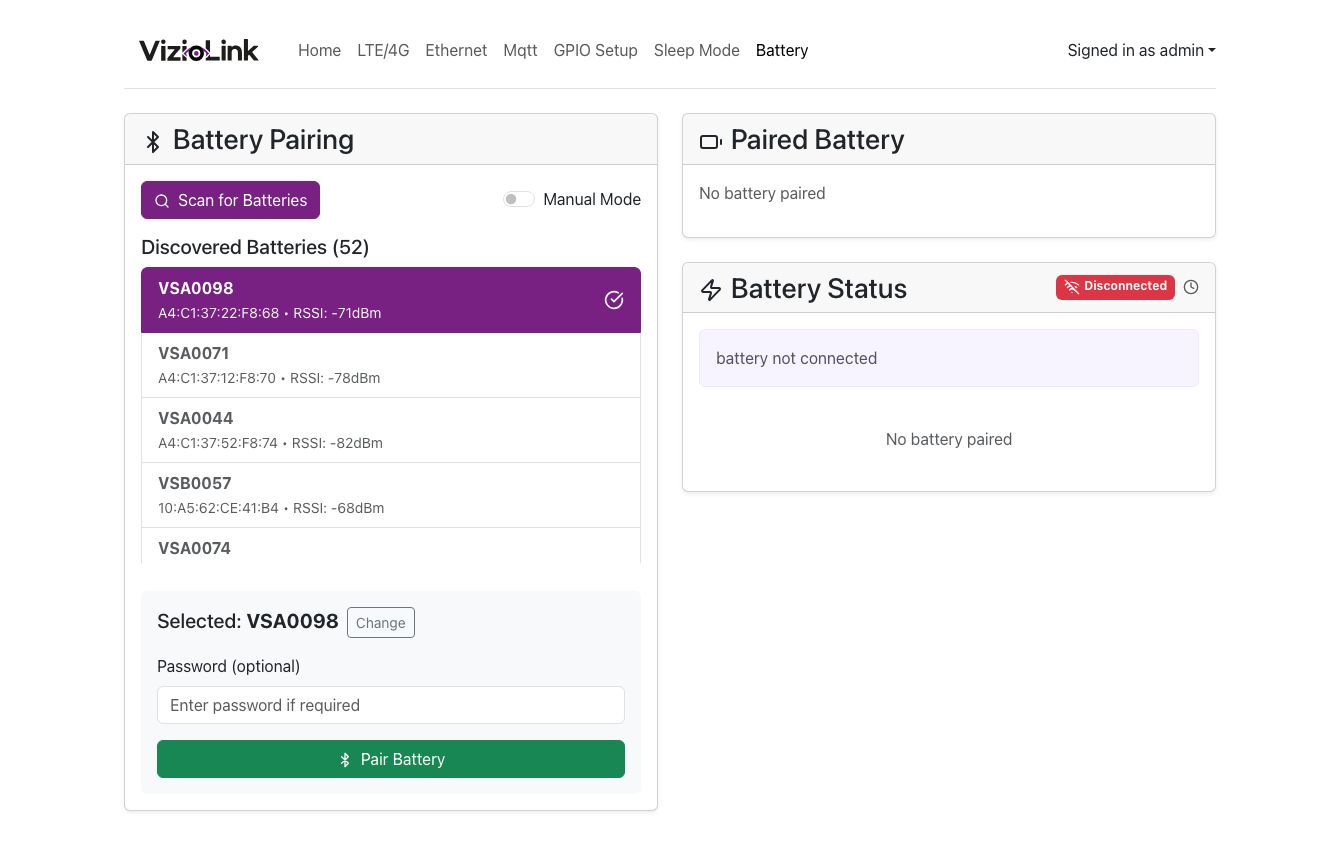
Select a Battery
- Click on the battery you want to pair with
- The selected battery will be highlighted with a checkmark
-
Enter Password (if required)
- If your battery requires a password, enter it in the password field
- Leave blank if no password is required
-
Pair the Battery
- Click the "Pair Battery" button
- Wait for the pairing process to complete
- A success message will appear when pairing is successful
If no batteries appear after scanning, ensure the battery is within Bluetooth range
Method 2: Manual Mode
Use this method if you know the battery's MAC address or if automatic scanning doesn't work.
-
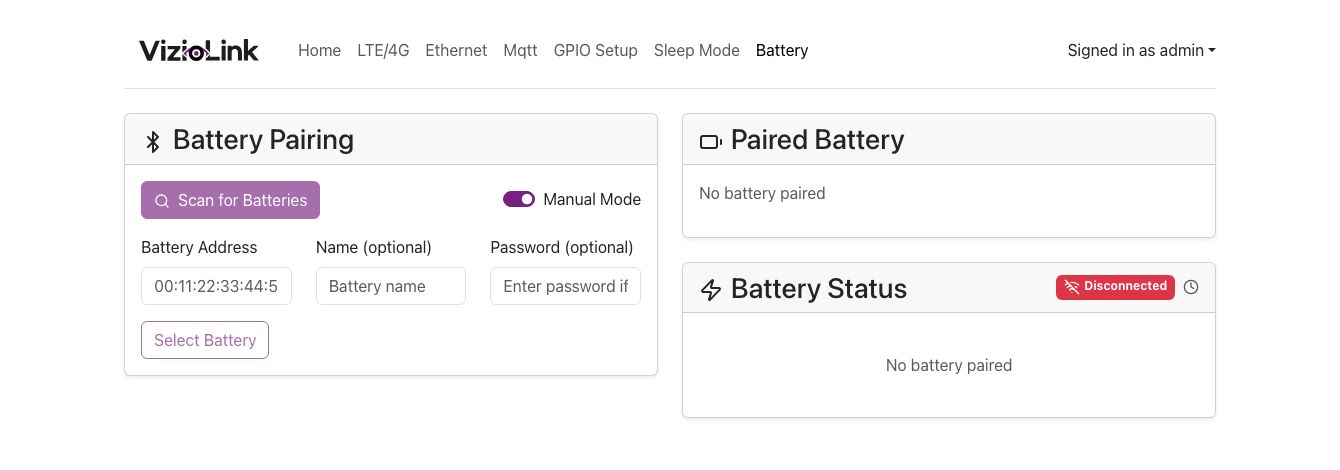
Enable Manual Mode
- Toggle the "Manual Mode" switch in the top-right corner of the Battery Pairing card
-
Enter Battery Information
- Battery Address (required): Enter the MAC address in the format
00:11:22:33:44:55 - Name (optional): Enter a friendly name for the battery
- Password (optional): Enter the battery password if required
- Battery Address (required): Enter the MAC address in the format
-
Select and Pair
- Click "Select Battery" to confirm your entry
- Click "Pair Battery" to initiate the pairing process
- Wait for the success confirmation
The battery MAC address must be in the format: XX:XX:XX:XX:XX:XX where X is a hexadecimal digit (0-9, A-F).
Monitoring Battery Status
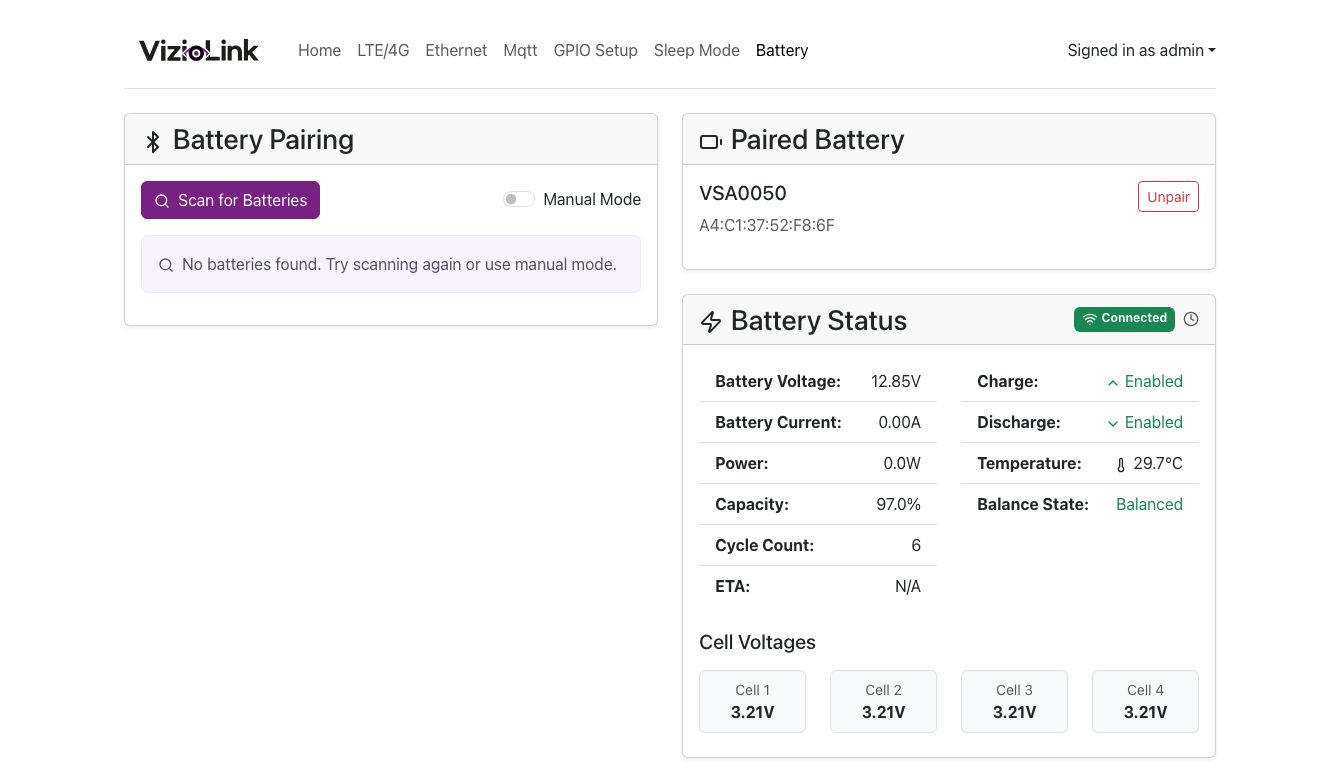
Once a battery is paired and connected, you can view comprehensive real-time status information.
Connection Status
The Battery Status card header displays the current connection state:
- Connected (green badge): Battery is actively connected and transmitting data
- Disconnected (red badge): Battery is paired but not currently connected
The system automatically attempts to reconnect every 10 seconds if the connection is lost.
Battery Metrics
The following metrics are displayed when the battery is connected:
Primary Metrics (Left Column)
- Battery Voltage: Total battery pack voltage in volts (V)
- Battery Current: Current flow in amperes (A)
- Positive values indicate charging
- Negative values indicate discharging
- Power: Current power consumption/generation in watts (W)
- Capacity: State of charge as a percentage (%)
- Cycle Count: Number of complete charge/discharge cycles
- ETA: Estimated time remaining (hours and minutes)
- Shows time until full when charging
- Shows time until empty when discharging
Secondary Metrics (Right Column)
- Charge: Indicates if charging is enabled/disabled
- Discharge: Indicates if discharging is enabled/disabled
- Temperature: Battery temperature in Celsius (°C)
- Displays the first temperature sensor reading
- Balance State: Shows if cells are currently balancing
Cell Voltages
Individual cell voltages are displayed in a grid format below the main metrics.
Each cell displays:
- Cell number: Sequential numbering (Cell 1, Cell 2, etc.)
- Voltage: Individual cell voltage in volts
- Balancing indicator: Yellow highlight and "⚖ Balancing" text if the cell is currently being balanced
Cell balancing ensures all cells in the battery pack maintain similar voltage levels. This is normal during charging and helps extend battery life.
Status Updates
- Battery status is automatically refreshed every 5 seconds when connected
- No manual refresh is required
- The clock icon in the header indicates automatic updates are active
Unpairing a Battery
To disconnect and unpair a battery:
-
Locate the Paired Battery Card
- Find the "Paired Battery" card in the right column
-
Click Unpair
- Click the "Unpair" button in the top-right corner of the card
-
Confirm Unpairing
- The battery will be disconnected and removed from the paired devices
- A success message will confirm the unpairing
Unpairing will stop all battery monitoring and MQTT publishing for this device. You will need to pair again to resume monitoring.
MQTT Integration
When a battery is paired and connected, the system automatically publishes battery status data to MQTT.
MQTT Topic
Battery status is published to: dt/compute/{computeId}/battery/status. More details can be found in the MQTT protocol documentation
Publishing Frequency
- Status is published every 5 minutes
- Publishing starts automatically when the battery connects
- Publishing stops when the battery is unpaired or disconnected
Troubleshooting
Battery Not Appearing in Scan
Problem: No batteries appear after clicking "Scan for Batteries"
Solutions:
- Verify the battery is within Bluetooth range (typically 3-10m)
- Try moving closer to the battery
- Use Manual Mode if you know the MAC address
Connection Failures
Problem: Battery fails to connect after pairing
Solutions:
- Verify the password is correct (if required)
- Check that the battery is not already connected to another device
- Try unpairing and pairing again
Disconnection Issues
Problem: Battery frequently disconnects
Solutions:
- Move the device closer to the battery to improve signal strength
- Check for Bluetooth interference from other devices