Markers Management
The markers view provides a comprehensive overview of all markers across your fleet.
note
Markers are created, configured and deleted through the device's annotation interface, not from this overview page.
Markers List Overview
To view all markers, navigate to the Fleet Management section in the left sidebar and click on Markers.
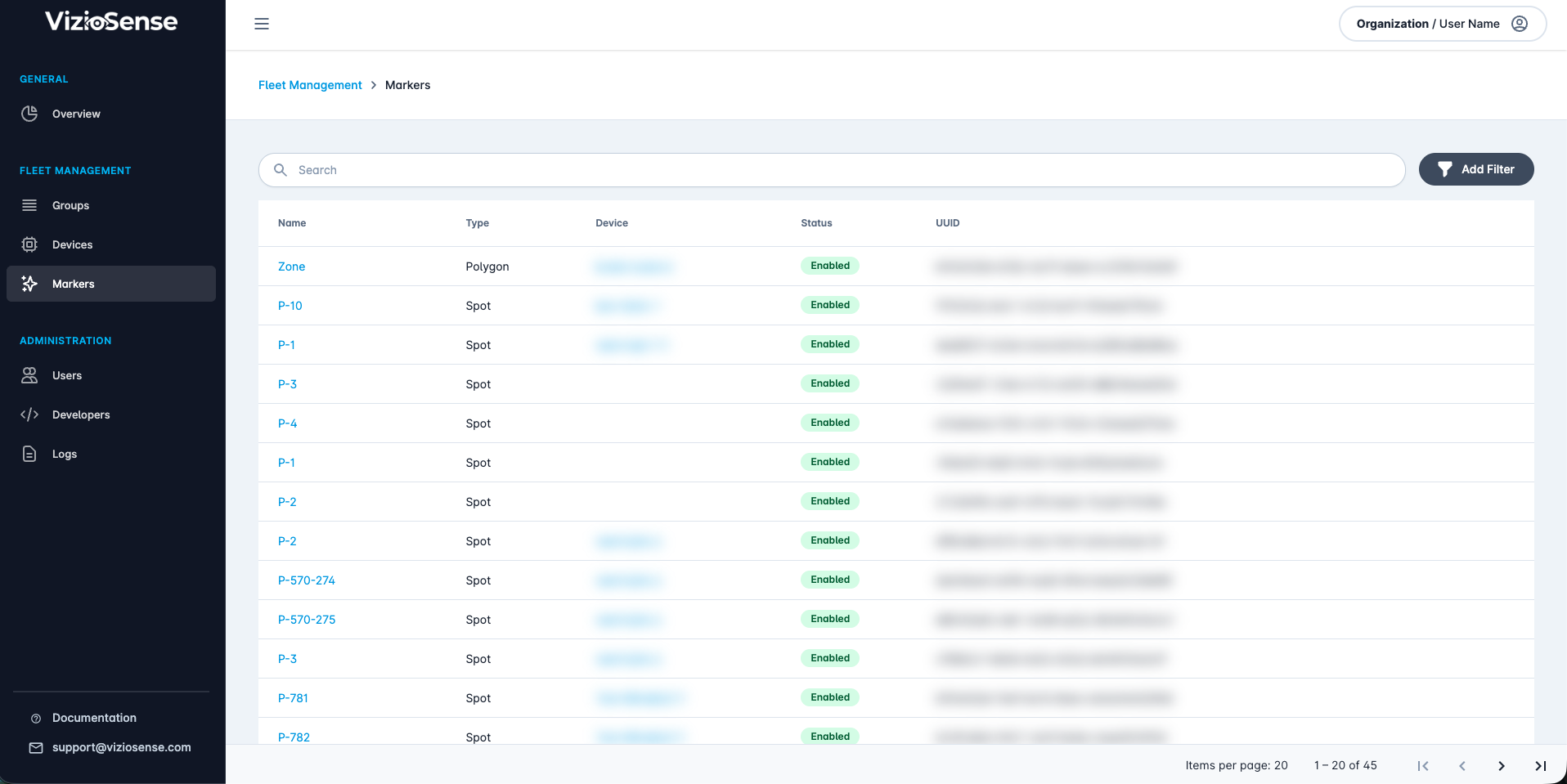
The markers list displays all markers in a table format with the following information:
- Name: The marker's name (e.g., "Zone", "Polygon_1", "P-7"). Click to navigate to the device's annotation page with the marker selected.
- Type: The marker type. Parking Spot, Counting Barrier (Line), or a zone (Polygon)
- Device: The device to which the marker belongs. Click to navigate to the device's detail view.
- Status: The current status (Enabled/Disabled)
- UUID: The unique identifier of the marker
Searching and Filtering
Search by Name
Use the search box at the top of the markers list to quickly find markers by name. Then press Enter to apply.
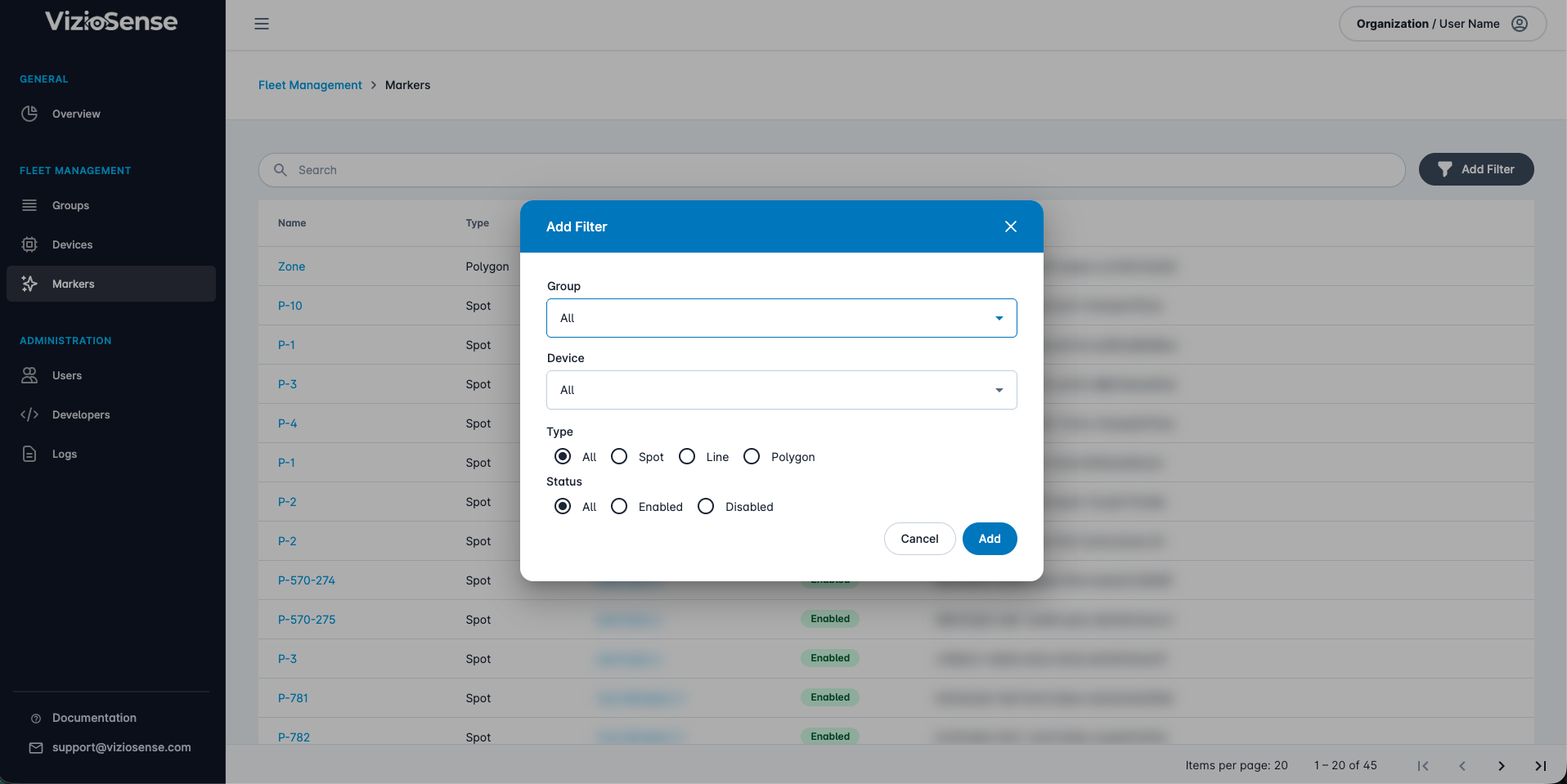
Advanced Filters
Click the Add Filter button to open the filters modal where you can specify Group, Device, Type and Status.