Device Management
The Integrator platform provides all the tools you need to autonomously configure and manage your camera fleet. This guide will walk you through the various features and views available to help you perform daily operations efficiently.
View and Check Your Fleet
To view and manage your devices, access the Device view:
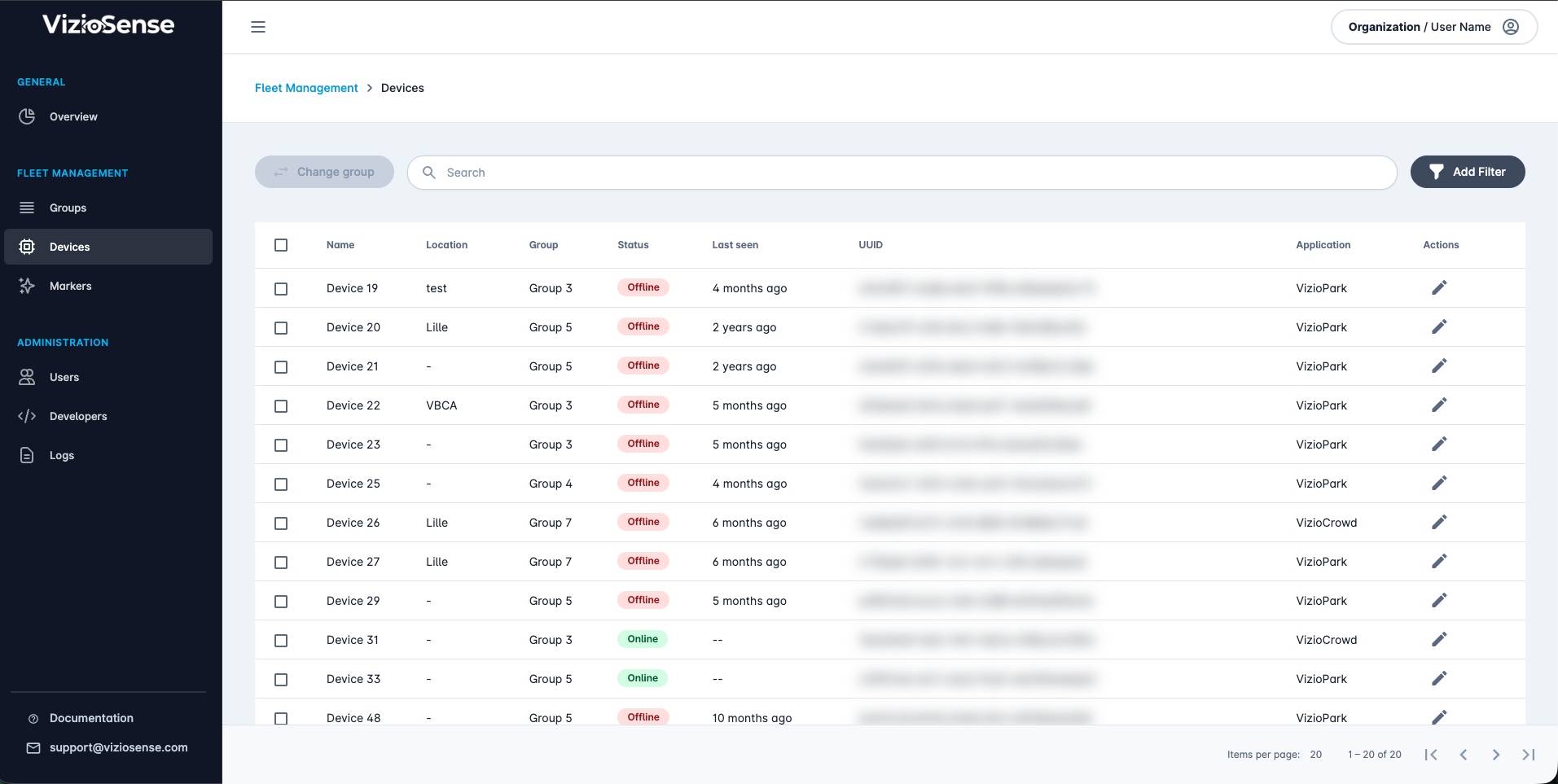
Device List Fields
Here is a description of the fields available in the device list table:
- Name: The user-defined name of the device. This helps you easily identify each device.
- Location: The user-defined location of the device. This field is useful for knowing where each device is physically installed.
- Group: The group to which the device belongs. Grouping devices can help you manage them more effectively. See the Group Management page for more information.
- Status: The current status of the camera. It can be either
OnlineorOffline. - Last Seen: The last time an image was requested from the device. This helps you track the activity and connectivity of the device.
- UUID: The unique identifier of the device. This is useful for technical reference and support.
- Application: The application configured on the device. This shows what application is running on the device.
Editing Device Information
To change the name and location of a device:
- Select the device in the list.
- Click on the
Actionsbutton. - Choose
Editfrom the dropdown menu. - Make the necessary changes and save.
Request an Anonymized Image for Auditing
To check the latest image from a device, click on the device to open its Detail view:
Image and Application Preview
Click on the Preview tab to access the image and application preview.
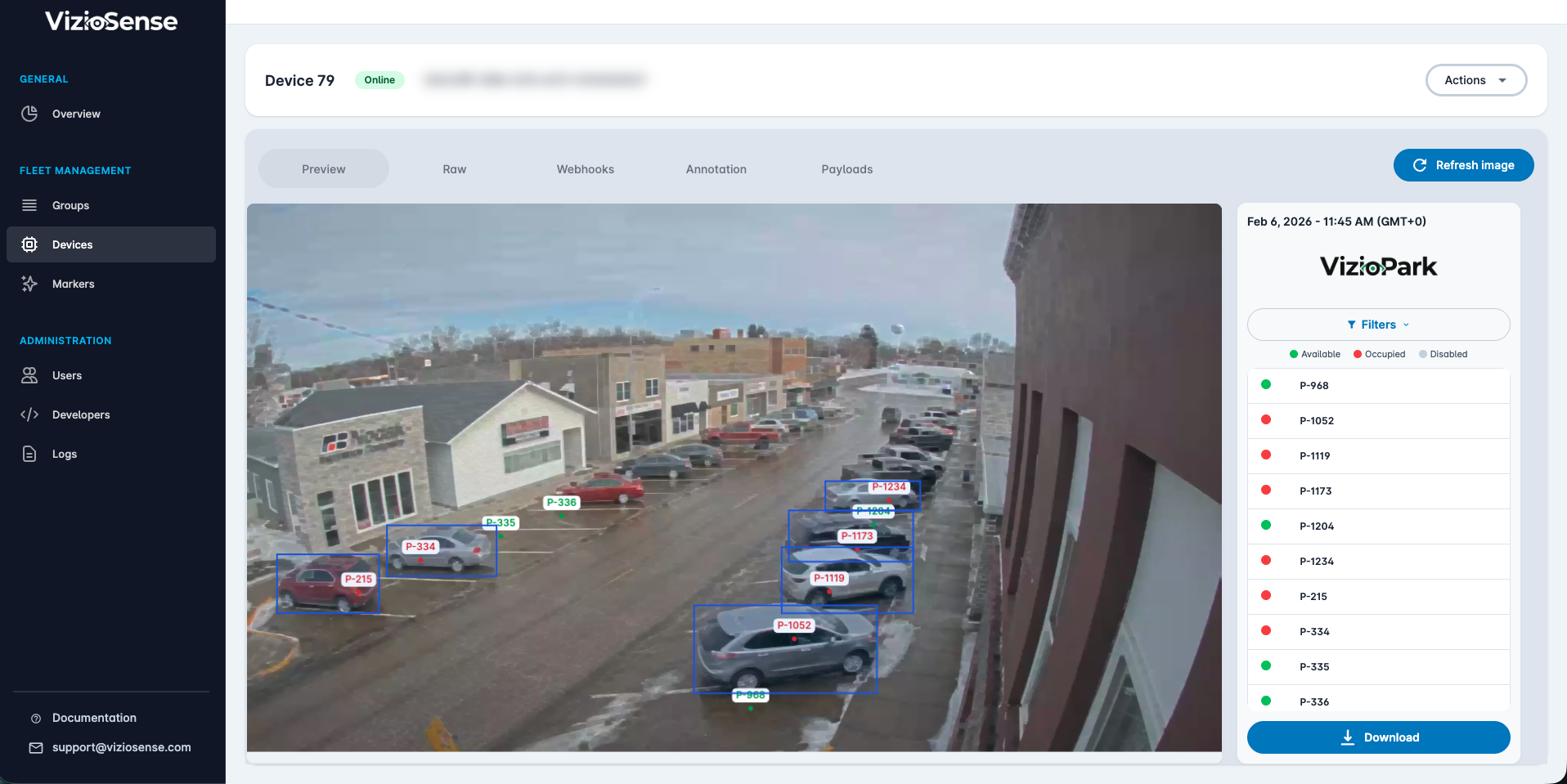
The Preview page displays the latest requested image along with the application settings and the current state of the application on the right column.
Raw Preview
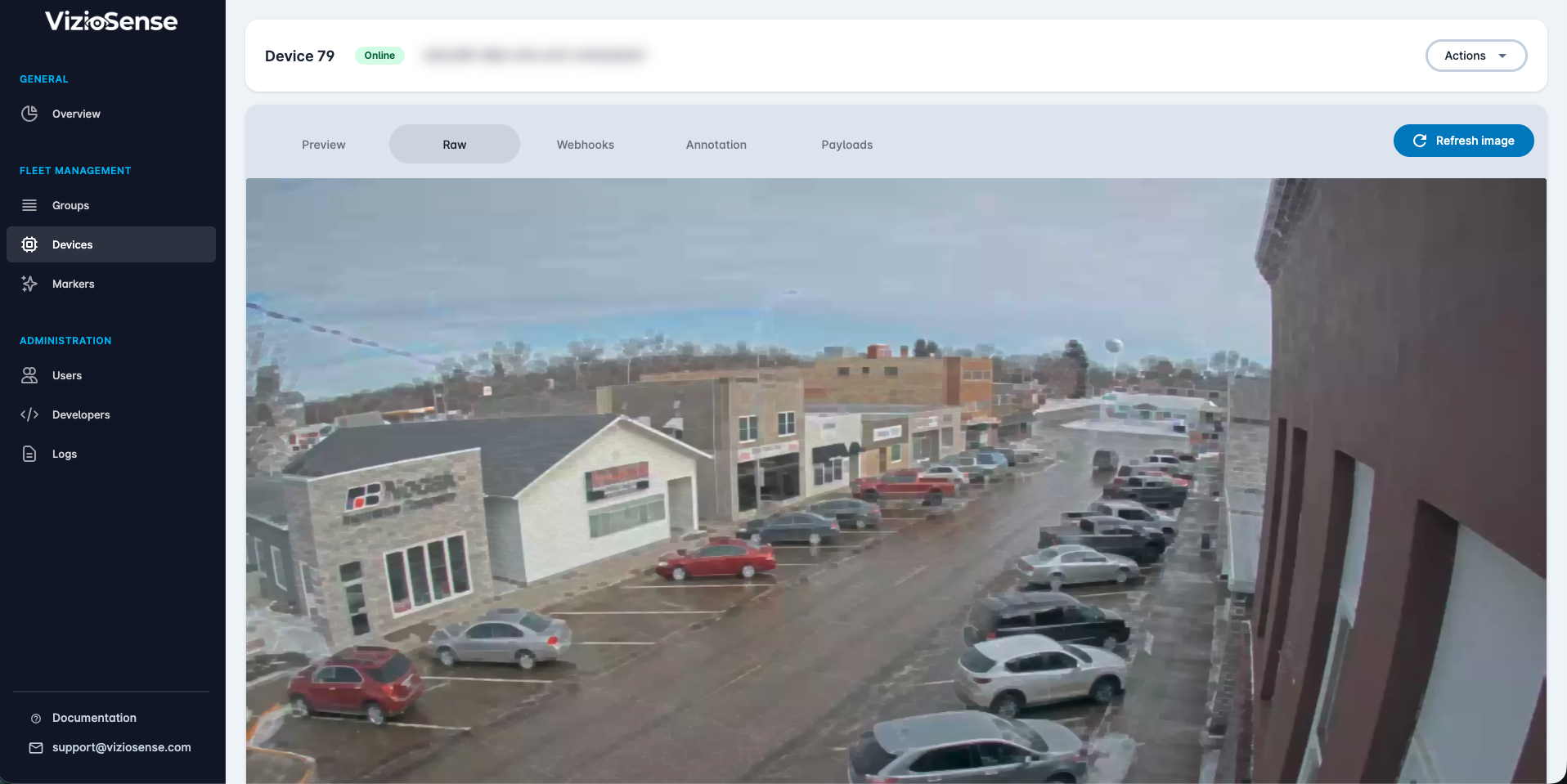
Click on the Raw tab to see a raw preview of the camera feed.
Configure Your Webhooks
Webhooks allow you to receive real-time data from your devices. To configure webhooks for a device:
- Go to the
Webhookstab in the device's details page. - Follow the instructions in the Webhook Configuration page for detailed steps.
Edit Your Camera Configuration
The Annotation tab allows you to modify the application's configuration settings on your device, including creating and managing markers:
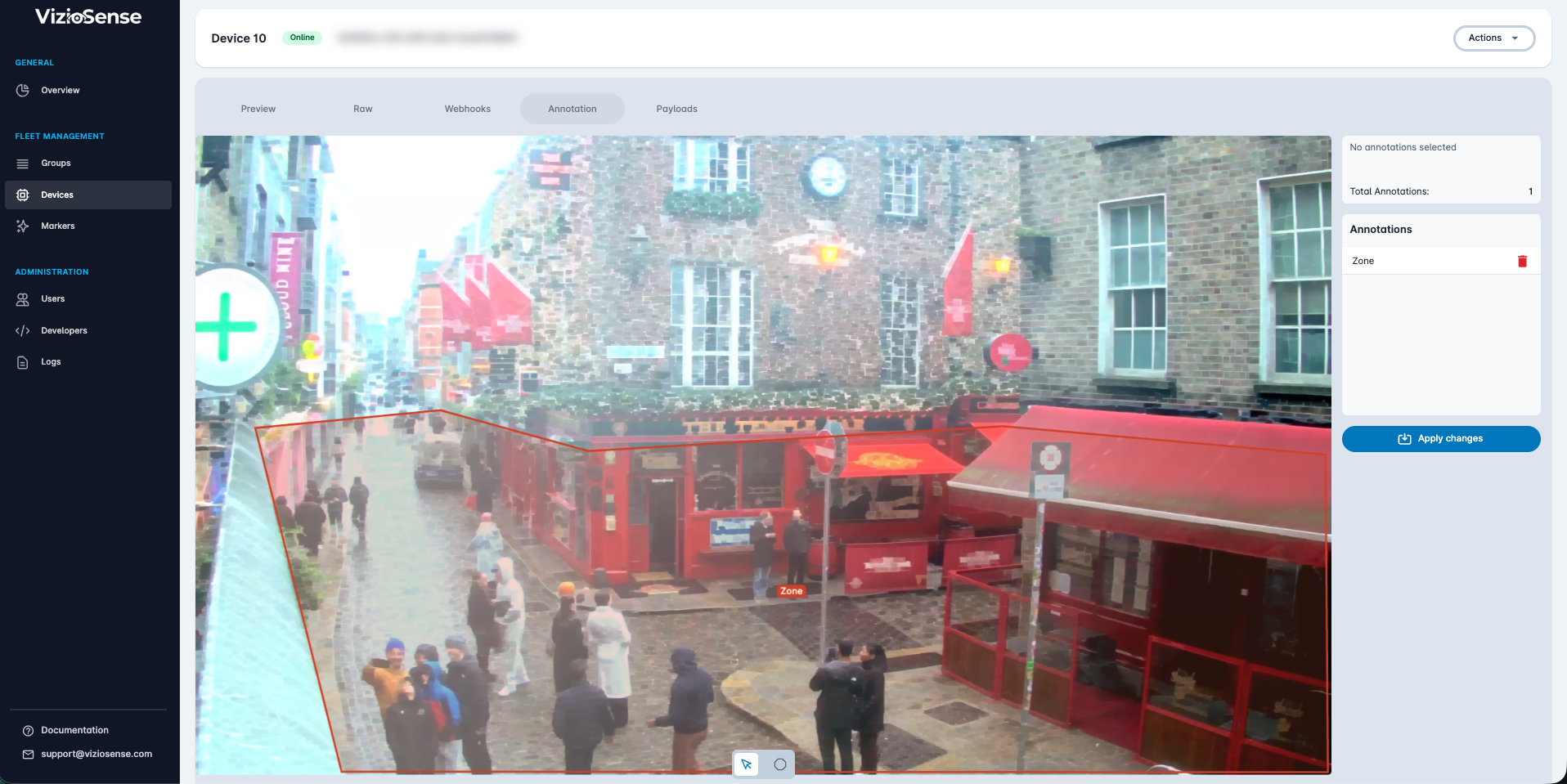
For detailed information on marker management, see the Markers Management page. For application configuration details, refer to the Application Configuration page.
See Latest Payload Content
The Payloads tab lets you view the latest payloads sent by the device to your webhooks. This information is useful for debugging and monitoring purposes:
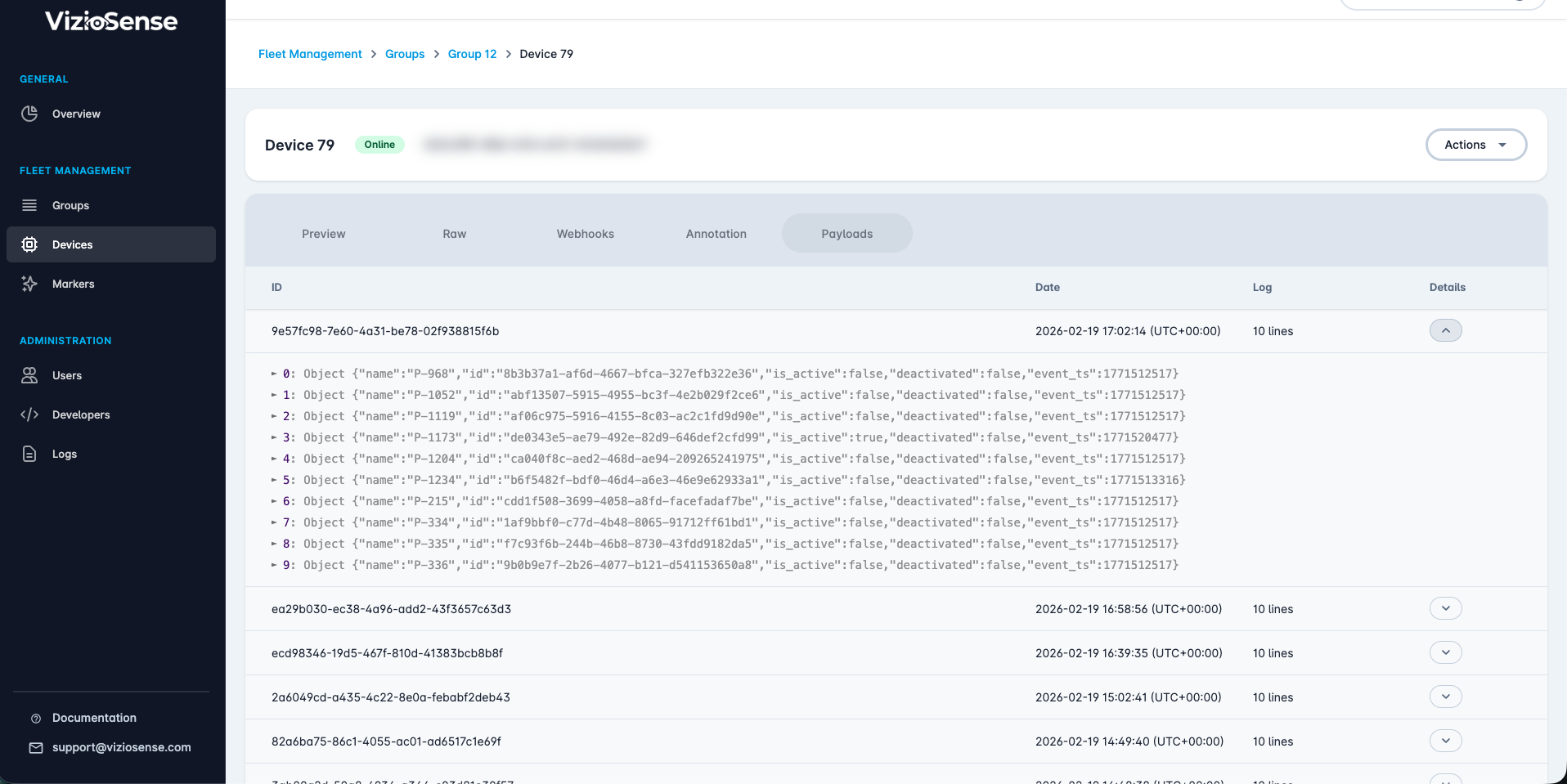
For a detailed explanation of payload content, visit the Payload Format page.